Monday, November 26, 2018

Thursday, November 15, 2018
How do you create a remote Git branch?
First, you create your branch locally:
git checkout -b <branch-name> # Create a new branch and check it out
The remote branch is automatically created when you push it to the remote server. So when you feel ready for it, you can just do:
git push <remote-name> <branch-name>
Where
<remote-name> is typically origin, the name which git gives to the remote you cloned from. Your colleagues would then just pull that branch, and it's automatically created locally.
Note however that formally, the format is:
git push <remote-name> <local-branch-name>:<remote-branch-name>
But when you omit one, it assumes both branch names are the same. Having said this, as a word of caution, do not make the critical mistake of specifying only
:<remote-branch-name> (with the colon), or the remote branch will be deleted!
So that a subsequent
git pull will know what to do, you might instead want to use:git push --set-upstream <remote-name> <local-branch-name>
As described below, the
--set-upstream option sets up an upstream branch:For every branch that is up to date or successfully pushed, add upstream (tracking) reference, used by argument-less git-pull(1) and other commands.
Sunday, September 23, 2018
git merge
NAME
git-merge - Join two or more development histories together
DESCRIPTION
Incorporates changes from the named commits (since the time their histories diverged from the current branch) into the current branch. This command is used by git pull to incorporate changes from another repository and can be used by hand to merge changes from one branch into another.
Assume the following history exists and the current branch is "
master": A---B---C topic
/
D---E---F---G master
Then "
git merge topic" will replay the changes made on the topic branch since it diverged from master (i.e., E) until its current commit (C) on top of master, and record the result in a new commit along with the names of the two parent commits and a log message from the user describing the changes. A---B---C topic
/ \
D---E---F---G---H master
The second syntax ("
git merge --abort") can only be run after the merge has resulted in conflicts. git merge --abort will abort the merge process and try to reconstruct the pre-merge state. However, if there were uncommitted changes when the merge started (and especially if those changes were further modified after the merge was started), git merge --abort will in some cases be unable to reconstruct the original (pre-merge) changes. Therefore:
Warning: Running git merge with non-trivial uncommitted changes is discouraged: while possible, it may leave you in a state that is hard to back out of in the case of a conflict.
The third syntax ("
git merge --continue") can only be run after the merge has resulted in conflicts.Wednesday, July 18, 2018
Tuesday, July 3, 2018
Ignoring files
From time to time, there are files you don't want Git to check in to
GitHub. There are a few ways to tell Git which files to ignore.
Create a local .gitignore
If you create a file in your repository named .gitignore, Git uses it to determine which files and directories to ignore, before you make a commit.A .gitignore file should be committed into your repository, in order to share the ignore rules with any other users that clone the repository.
GitHub maintains an official list of recommended .gitignore files for many popular operating systems, environments, and languages in the
github/gitignore public repository.- In Terminal, navigate to the location of your Git repository.
- Enter
touch .gitignoreto create a .gitignore file.
If you already have a file checked in, and you want to ignore it, Git will not ignore the file if you add a rule later. In those cases, you must untrack the file first, by running the following command in your terminal:
git rm --cached FILENAME
Create a global .gitignore
You can also create a global .gitignore file, which is a list of rules for ignoring files in every Git repository on your computer. For example, you might create the file at ~/.gitignore_global and add some rules to it.- Open Terminal.
- Run the following command in your terminal:
git config --global core.excludesfile ~/.gitignore_global
Explicit repository excludes
If you don't want to create a .gitignore file to share with others, you can create rules that are not committed with the repository. You can use this technique for locally-generated files that you don't expect other users to generate, such as files created by your editor.Use your favorite text editor to open the file called .git/info/exclude within the root of your Git repository. Any rule you add here will not be checked in, and will only ignore files for your local repository.
- In Terminal, navigate to the location of your Git repository.
- Using your favorite text editor, open the file .git/info/exclude.
Tuesday, April 17, 2018
How to revert Git repository to a previous commit?
This depends a lot on what you mean by "revert".
If you decide you didn't want to revert after all, you can revert the revert (as described here) or reset back to before the revert (see the previous section).
You may also find this answer helpful in this case:
How to move HEAD back to a previous location? (Detached head)
Temporarily switch to a different commit
If you want to temporarily go back to it, fool around, then come back to where you are, all you have to do is check out the desired commit:# This will detach your HEAD, that is, leave you with no branch checked out:
git checkout 0d1d7fc32git checkout -b old-state 0d1d7fc32
Hard delete unpublished commits
If, on the other hand, you want to really get rid of everything you've done since then, there are two possibilities. One, if you haven't published any of these commits, simply reset:# This will destroy any local modifications.
# Don't do it if you have uncommitted work you want to keep.
git reset --hard 0d1d7fc32
# Alternatively, if there's work to keep:
git stash
git reset --hard 0d1d7fc32
git stash pop
# This saves the modifications, then reapplies that patch after resetting.
# You could get merge conflicts, if you've modified things which were
# changed since the commit you reset to.Undo published commits with new commits
On the other hand, if you've published the work, you probably don't want to reset the branch, since that's effectively rewriting history. In that case, you could indeed revert the commits. With Git, revert has a very specific meaning: create a commit with the reverse patch to cancel it out. This way you don't rewrite any history.# This will create three separate revert commits:
git revert a867b4af 25eee4ca 0766c053
# It also takes ranges. This will revert the last two commits:
git revert HEAD~2..HEAD
#Similarly, you can revert a range of commits using commit hashes:
git revert a867b4af..0766c053
# Reverting a merge commit
git revert -m 1 <merge_commit_sha>
# To get just one, you could use `rebase -i` to squash them afterwards
# Or, you could do it manually (be sure to do this at top level of the repo)
# get your index and work tree into the desired state, without changing HEAD:
git checkout 0d1d7fc32 .
# Then commit. Be sure and write a good message describing what you just did
git commitgit-revert manpage actually covers a lot of this in its description. Another useful link is this git-scm.com section discussing git-revert.If you decide you didn't want to revert after all, you can revert the revert (as described here) or reset back to before the revert (see the previous section).
You may also find this answer helpful in this case:
How to move HEAD back to a previous location? (Detached head)
Sunday, April 1, 2018
Japanese in Git
Vấn đề: git status trong git bash không hiển thị được tên file tiếng nhật
Git quotes any non-ascii character by default, not only asian ones. There's an option to disable this quoting behaviour.
You can disable it using the following command:
git config --global core.quotepath false
Or, alternatively, by adding the following snippet to your git config file ($HOME/.gitconfig usually)
[core]
    quotepath = false
After this, git should show your filenames exactly as they are.
As to your other problem, git not adding a file with asian characters, I can only guess that it has to do with the encoding that git uses is not the same as the encoding your terminal uses. I hope someone else can jump in and explain that bit.
----------


----------
Vấn đề: ls trong git bash sẽ không hiển thị được tên file tiếng nhật
By default, Git Bash makes Japanese files look garbled. However, it is not merely a garbled character, and Japanese is displayed as \xx (backslash digit) respectively.
Such a Japanese folder,
this is displayed.
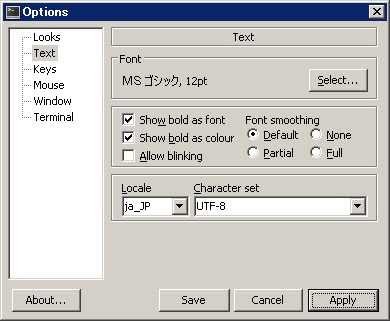
In this case, it is necessary to change the locale and font setting of Git Bash as the initial setting. Click the icon in the upper left corner of the window or right click on the screen and select Options.
Since it is empty like this by default, select ja_JP.
Also select MS Gothic from Font> Select.
This makes it possible to display Japanese without garbling.
Monday, March 12, 2018
How to undo the most recent commits in Git
$ git commit -m "Something terribly misguided"              (1)
$ git reset HEAD~                                           (2)
<< edit files as necessary >>                               (3)
$ git add ...                                               (4)
$ git commit -c ORIG_HEAD (5)- This is what you want to undo
- This leaves your working tree (the state of your files on disk)
unchanged but undoes the commit and leaves the changes you committed
unstaged (so they'll appear as "Changes not staged for commit" in
git status, and you'll need to add them again before committing). If you only want to add more changes to the previous commit, or change the commit message1, you could usegit reset --soft HEAD~instead, which is likegit reset HEAD~(whereHEAD~is the same asHEAD~1) but leaves your existing changes staged. - Make corrections to working tree files.
git addanything that you want to include in your new commit.- Commit the changes, reusing the old commit message.
resetcopied the old head to.git/ORIG_HEAD;commitwith-c ORIG_HEADwill open an editor, which initially contains the log message from the old commit and allows you to edit it. If you do not need to edit the message, you could use the-Coption.
1 Note, however, that you don't need to reset to an earlier commit if you just made a mistake in your commit message. The easier option is to
git reset (to upstage any changes you've made since) and then git commit --amend, which will open your default commit message editor pre-populated with the last commit message. Beware however that if you have added any new changes to the index, using
commit --amend will add them to your previous commit.---- Edit by Frank R. 2018-3-9
If pushed,
git push origin master --force
Thursday, March 1, 2018
Subscribe to:
Comments (Atom)